
TradeLocker has solved this problem. By integrating TradingView's charting technology directly into a lightning-fast execution terminal, TradeLocker has quickly become the platform of choice for modern prop firm traders.
At Next Level Funded (NLF), we fully support TradeLocker across all our evaluation and instant funding accounts. If you are new to this platform, this complete guide will show you exactly how to log in, navigate the interface, and execute your first trade.
Step 1: How to Log Into TradeLocker
Unlike legacy platforms that require you to download heavy desktop software, TradeLocker is primarily a web-based and mobile-first application, making it incredibly accessible.
- Check Your Email: When you purchase an NLF account and select TradeLocker, you will receive an email with your credentials: an Email/Username, a Password, and the specific Server Environment.
- Access the Terminal: Navigate to the TradeLocker web terminal (the exact URL will be in your welcome email) or download the TradeLocker app from the iOS App Store or Google Play Store.
- Select Your Environment: This is crucial. Ensure you select the correct server environment (e.g., NLF Demo or NLF Live) from the dropdown menu on the login screen.
- Enter Credentials: Input the exact email and password provided. Click Login.
Step 2: Navigating the TradeLocker Interface
If you have ever used TradingView, you will feel instantly at home on TradeLocker. The interface is clean, dark-themed, and highly intuitive.
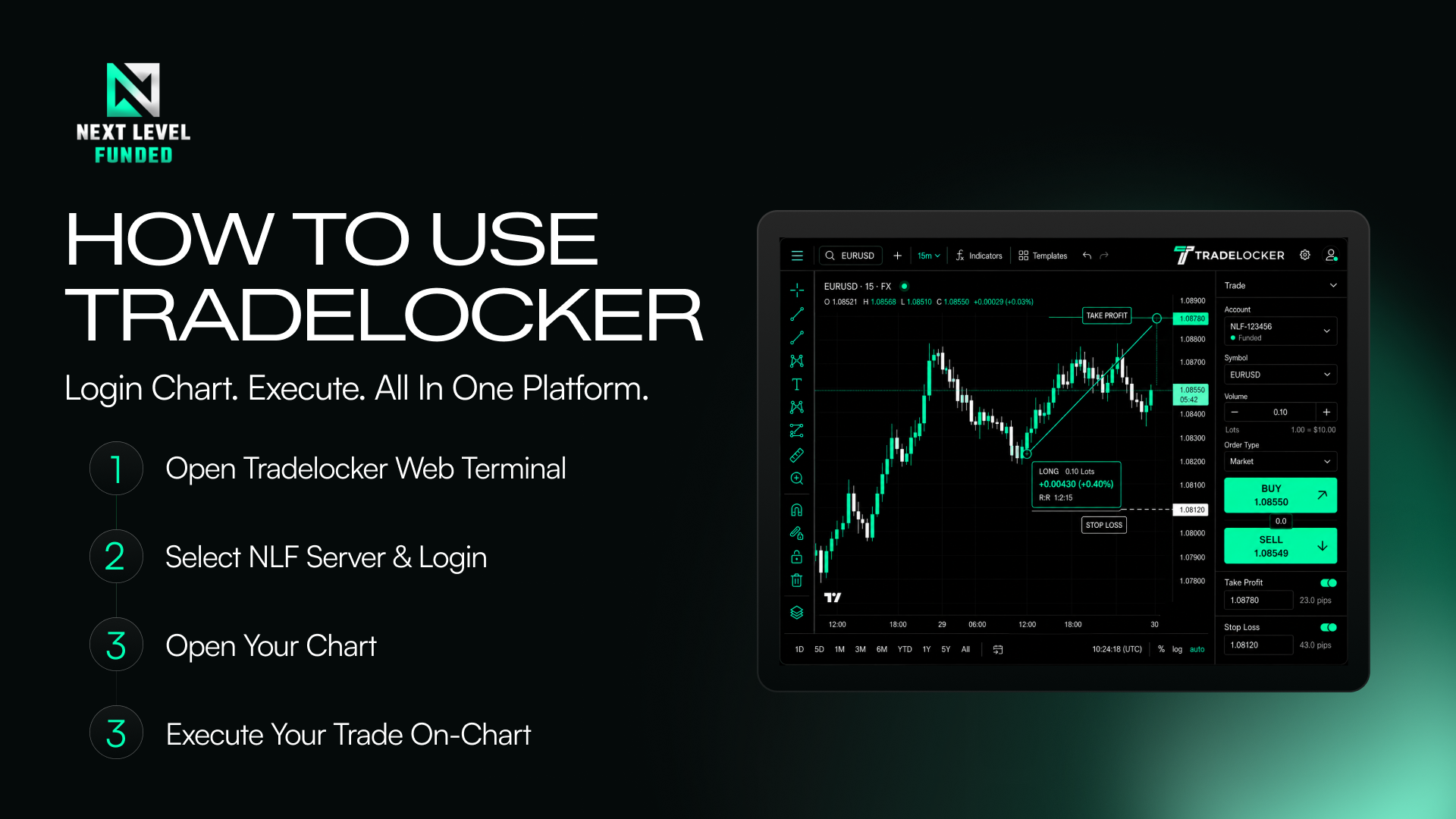
- The Chart (Center): The bulk of your screen is dedicated to the TradingView chart. All your favorite drawing tools, Fibonacci retracements, and indicators are available on the left and top toolbars.
- Instrument Panel (Left Side): Here you can search for Forex pairs, indices, metals, and crypto. Click the star icon next to an instrument to add it to your Watchlist.
- Order Panel (Right Side): This is where the magic happens. The order panel allows you to configure your lot size, stop loss, and take profit before executing the trade.
- Positions Tab (Bottom): View your open trades, pending orders, account balance, and equity in real-time.
Step 3: How to Execute a Trade
TradeLocker makes execution incredibly visual and user-friendly. There are two primary ways to enter the market:
Method 1: The Order Panel
- Select your instrument (e.g., XAUUSD).
- On the right-side Order Panel, select Market (execute now) or Pending (Limit/Stop orders).
- Input your Lot Size.
- Toggle the Stop Loss (SL) and Take Profit (TP) buttons. You can input these by exact price, by ticks/pips, or by a specific dollar amount you are willing to risk.
- Click the Buy or Sell button.
Method 2: On-Chart Trading (One-Click)
This is TradeLocker's best feature. Once you enable One-Click trading in the settings:
- Click the Buy or Sell button directly on the chart.
- Once the trade is open, you will see a line representing your entry price.
- Simply click and drag that line up or down to visually set your Stop Loss and Take Profit levels directly on the chart. The platform will automatically calculate your dollar risk as you drag the line.
Why Choose TradeLocker at NLF?
At Next Level Funded, we offer TradeLocker for a nominal +$3.50 platform fee due to licensing costs. For price action traders, Smart Money Concepts (SMC) traders, and anyone who relies heavily on TradingView, this small fee is absolutely worth it.
The ability to chart and execute in the exact same window eliminates the friction of switching between apps, allowing you to catch precise entries on the 1-minute timeframe without delay.
Ready to trade on the most advanced platform in the industry?
Select TradeLocker on Your Next NLF Account Today
Author: Spencer Todd, Founder of Next Level Funded
More Blogs


START TRADING WITH CLEAR RULES
Choose from 1-step, 2-step and instant funding models across CFDs and forex, built around your trading style.
Get Started Now
© Next Level Funded 2026 | All Rights Reserved


